How to Optimize PC for Gaming: A Simple Guide for Better Performance
Gaming on a PC can be a great experience, but sometimes games do not run smoothly. You may face lag, low frame rates, or slow loading times. The good news is that you can improve your gaming performance by learning how to optimize your PC for gaming.
PC optimization does not always require expensive upgrades. Many simple changes can make a big difference. In this guide, we will explain easy and effective ways to make your PC faster and improve your gaming experience.
What Does PC Optimization Mean?
PC optimization means improving your computer’s performance so it runs games smoothly. This includes:
- Increasing speed
- Reducing lag
- Improving frame rates (FPS)
- Making games load faster
When your PC is optimized, games feel more responsive and enjoyable.
Why PC Optimization Is Important for Gaming
Many players think they need a powerful PC to enjoy games. While hardware is important, optimization can greatly improve performance even on budget systems.
Here’s why it matters:
- Reduces lag during gameplay
- Improves FPS (frames per second)
- Makes controls more responsive
- Prevents crashes and freezing
A well-optimized PC gives you a smoother gaming experience.
Close Background Applications
One of the easiest ways to improve performance is by closing unnecessary programs. Many apps run in the background and use CPU and RAM. This reduces the power available for your game.
Before playing:
- Close web browsers
- Turn off unused apps
- Stop unnecessary startup programs
This frees up system resources for better gaming performance.
Update Graphics Drivers
Graphics drivers help your PC communicate with your graphics card. Keeping them updated is very important.
Updated drivers can:
- Improve game performance
- Fix bugs and errors
- Add support for new games
Always install the latest drivers from your GPU manufacturer.
Adjust In-Game Graphics Settings
Not all PCs can run games at high settings. Lowering graphics settings can improve performance significantly.
You can adjust:
- Resolution
- Texture quality
- Shadow effects
- Anti-aliasing
Start with medium or low settings and increase gradually until you find a smooth balance.
Enable Game Mode (Windows)
Windows has a feature called Game Mode that helps improve gaming performance.
Game Mode:
- Prioritizes your game
- Reduces background activity
- Improves system focus on gaming
You can turn it on in Windows settings.
Upgrade to SSD Storage
If your PC uses a traditional hard drive (HDD), upgrading to an SSD can greatly improve performance.
SSD benefits include:
- Faster game loading times
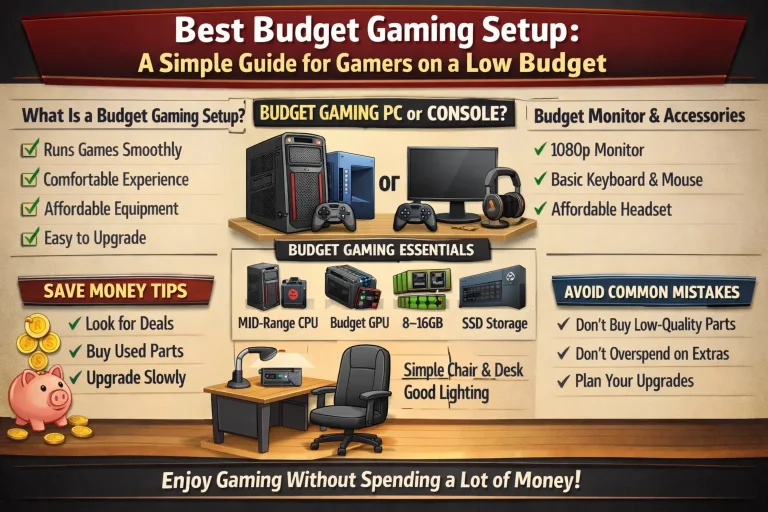
- Best Budget Gaming Setup
- Smoother performance
This is one of the best upgrades for gaming optimization.
Increase RAM (If Possible)
RAM is important for running games smoothly. If your system has low RAM, games may lag or stutter.
Recommended:
- Minimum: 8GB RAM
- Better: 16GB RAM
More RAM allows your PC to handle games and background tasks easily.
Keep Your PC Clean and Cool
Heat can slow down your PC. If your system gets too hot, performance may drop.
To prevent overheating:
- Clean dust from fans
- Ensure proper airflow
- Use cooling fans if needed
A cool system runs faster and more efficiently.
Disable Unnecessary Visual Effects
Windows includes visual effects that use system resources. Turning off these effects can improve performance.
You can disable:
- Animations
- Transparent effects
- Extra visuals
This helps your PC focus more on gaming.
Optimize Power Settings
Your PC’s power settings can affect performance.
Set your system to High Performance Mode:
- Improves CPU speed
- Provides better gaming performance
This option is available in power settings.
Use Fullscreen Mode in Games
Playing games in fullscreen mode can improve performance compared to windowed mode.
Fullscreen mode:
- Reduces background distractions
- Improves FPS
- Uses system resources more efficiently
Keep Your System Updated
Updating your operating system is important for performance and stability.
Updates can:
- Fix bugs
- Improve system performance
- Enhance compatibility with games
Always keep your system up to date.
Manage Storage Space
A full hard drive can slow down your PC.
To improve performance:
- Delete unnecessary files
- Remove unused programs
- Keep enough free space
This helps your system run smoothly.
Use Game Optimization Software
Some tools are designed to optimize your PC for gaming automatically.
These tools can:
- Close background apps
- Improve performance settings
- Boost system speed
They are helpful, especially for beginners.
Avoid Overloading Your PC
Running too many tasks at once can reduce performance.
While gaming, avoid:
- Streaming heavy videos
- Running multiple programs
- Downloading large files
Keep your system focused on the game.
Test and Adjust Regularly
Every game is different. What works for one game may not work for another.
Always:
- Test your settings
- Adjust based on performance
- Find the best balance between quality and speed
Benefits of Optimizing Your PC for Gaming
When your PC is optimized, you will notice:
- Smoother gameplay
- Faster response time
- Better graphics performance
- Less lag and stuttering
These improvements make gaming more enjoyable.
Conclusion
Optimizing your PC for gaming is one of the best ways to improve performance without spending too much money. Simple steps like closing background apps, updating drivers, adjusting settings, and keeping your system clean can make a big difference.
You do not always need expensive hardware to enjoy gaming. With the right optimization, even a budget PC can deliver a smooth and enjoyable experience.
Focus on small improvements, test your setup, and continue learning. Over time, your gaming performance will become faster, smoother, and more reliable.
FAQs
1. How can I make my PC faster for gaming?
You can make your PC faster by closing background apps, updating drivers, lowering game settings, and enabling Game Mode.
2. Does increasing RAM improve gaming performance?
Yes, more RAM helps your PC run games more smoothly, especially if your current RAM is low.
3. Is SSD better than HDD for gaming?
Yes, SSDs load games faster and improve overall system performance compared to HDDs.
4. What settings should I lower for better FPS?
Lower settings like shadows, textures, and resolution to increase FPS.
5. Do I need expensive hardware for good gaming performance?
No, with proper optimization, even a budget PC can run many games smoothly.